1. Introduction
What GeoMarkup is
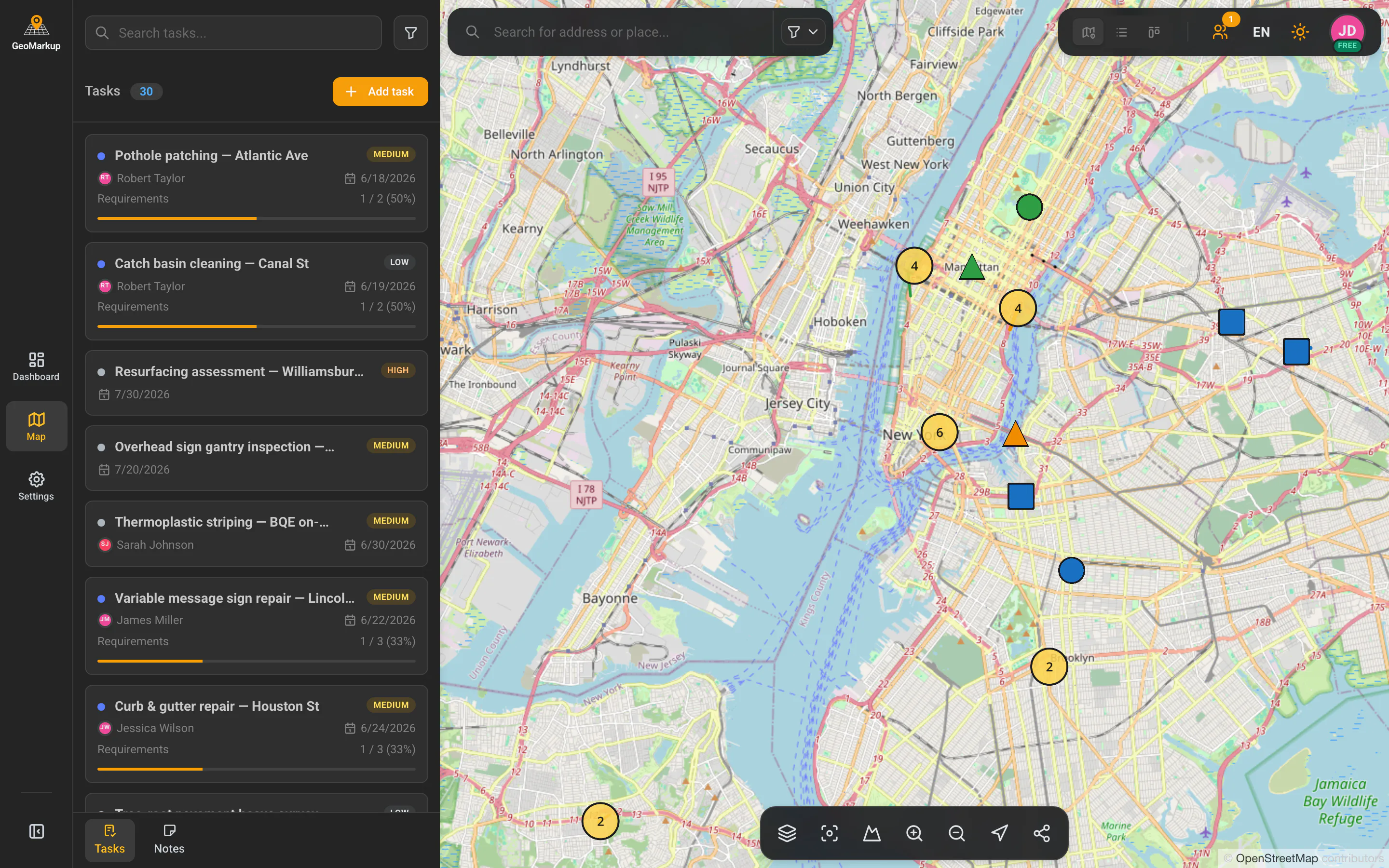
GeoMarkup is a browser-based application that combines a map with task management. You pin every task or note to an exact spot on the map — so you can see at a glance where something needs doing, what exactly, and who is responsible.
The app is designed first and foremost for field work — road inspections, construction, audits and similar jobs that have a location on the map of Poland.
Who it’s for
GeoMarkup fits anywhere a team has to coordinate work across many locations:
- managers and coordinators — plan tasks, assign them to people and track progress on the dashboard,
- field workers — pick up the tasks assigned to them, do the work and check off each step,
- observers — review the state of work without being able to change it.
Key concepts
Before you start, it helps to know a few basic terms that run through the whole app:
| Term | What it means |
|---|---|
| Workspace | Your own space for projects and team collaboration. You can belong to many workspaces and switch between them. |
| Task | A piece of work to be done, pinned to a place on the map. It has a title, status, priority, an assignee, a due date, and drawings on the map (points, lines, shapes). |
| Note | A lightweight jotting or observation — it can (but doesn’t have to) be pinned to a place on the map. It has no status or assignee. |
| Artifact | The shared name for tasks and notes — the things you create that appear on the map. |
| Dashboard | The home page of a workspace, summarising how many tasks there are, their statuses, and who has how much work. |
| Map | The interactive map of Poland where you see and create tasks and notes. |
| Role | Defines what a person can do in a workspace — for example only view, or manage the whole team. |
You’ll find the full glossary in the Glossary chapter.
Working on a computer, tablet and phone (RWD)
GeoMarkup is a responsive (RWD) application — it automatically adapts its layout to the device you’re working on. You can use it:
- on a computer and laptop — the full layout, with the side menu, panels and all tools visible at once,
- on a tablet — an in-between layout; some panels slide out on demand,
- on a phone — the menu hides behind a button, panels open full-screen, and the map tools move to the bottom of the screen to fit a narrow display.
All you need is a modern web browser (e.g. Chrome, Firefox, Safari, Edge) and an internet connection. There’s nothing to install.
Details about working on a phone and tablet are in the Interface chapter.