11. Notes
A note is a lightweight jotting — an idea, observation or remark you want to keep. It can (but doesn’t have to) be pinned to a place on the map. Notes are simpler than tasks: they have no status, priority or assignee.
How a note differs from a task
| Feature | Note | Task |
|---|---|---|
| Status (Pending / In Progress / …) | ✕ | ✓ |
| Priority | ✕ | ✓ |
| Assignee | ✕ | ✓ |
| Due date / start date | ✕ | ✓ |
| Requirements (checklist) | ✕ | ✓ |
| Comments | ✕ | ✓ |
| Complex map drawings (lines, shapes) | ✕ (point only) | ✓ |
| Kanban view | ✕ | ✓ |
| Privacy (a note only for you) | ✓ | ✕ |
| Rich text editor (formatting) | ✓ | ✕ (plain description) |
| Optional location | ✓ | ✕ (required) |
| Autosave while typing | ✓ | ✕ |
| Attachments | ✓ | ✓ |
| Change history | ✓ | ✓ |
In short: a task is work to do and track, while a note is a quick jotting or piece of information.
What a note is made of
| Element | Description |
|---|---|
| Title | The note name (up to 200 characters). |
| Content | Formatted text (bold, lists, headings, links, images). |
| Colour | The note marker colour (choose from 10 colours). |
| Visibility | Private (only you) or Everyone (the whole team). |
| Location | Optional pinning to a point on the map. |
| Linked task | You can link a note to one task. |
| Attachments | Files attached to the note. |
| Author | The person who created the note. |
| History | A change log. |
Switching between Tasks and Notes
Notes and tasks are two kinds of artifacts. You switch between them like this:
- Outside the map (list/Kanban): in the top bar, click the artifact switcher and choose “Tasks” or “Notes”.
- On the map: in the side panel (on the left), click the tab with the note or task icon.

Adding a note
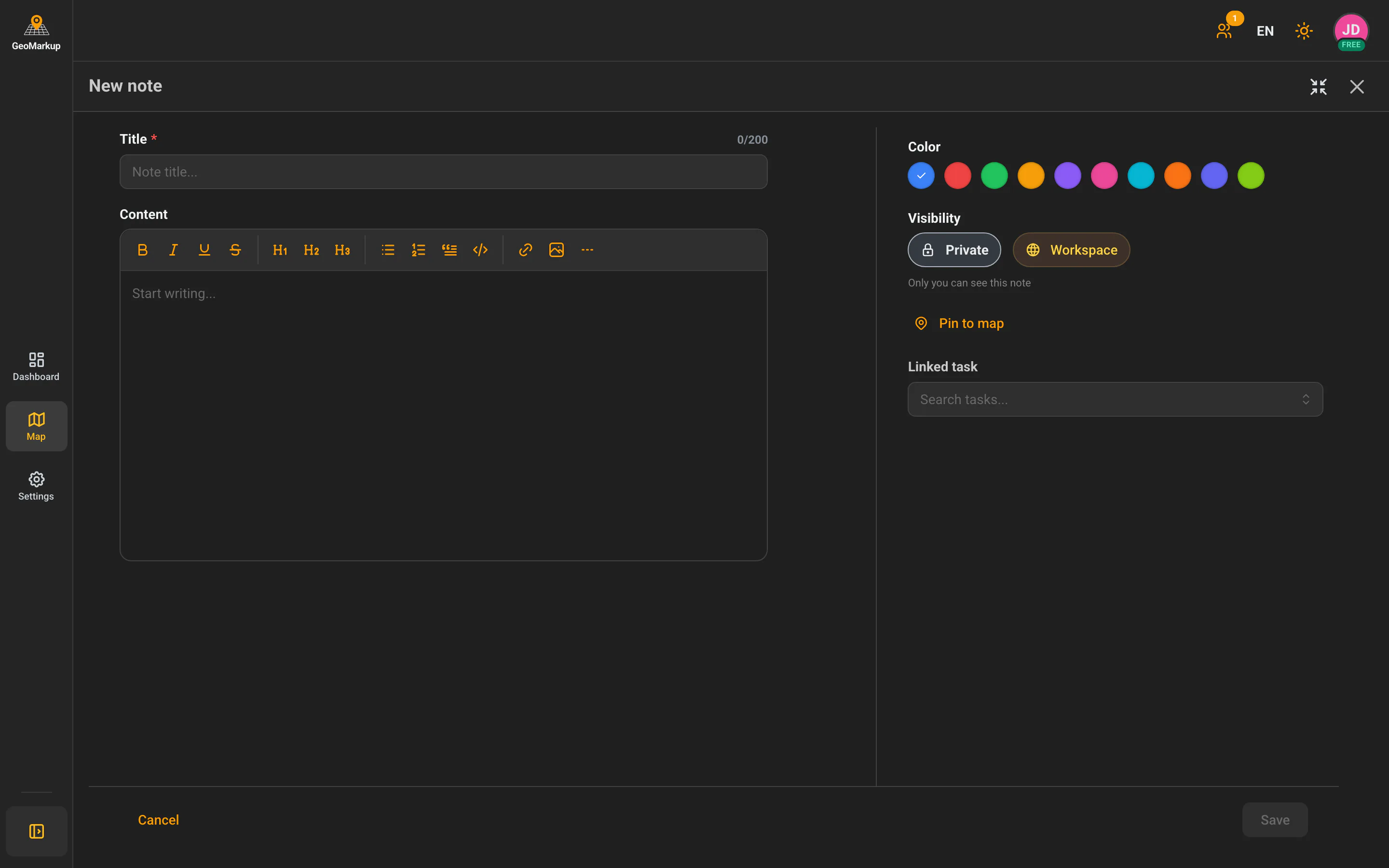
Unlike tasks, you create a note through one simple form (no step-by-step wizard).
How to start:
- Click “New note” in the notes panel (on the map or in list view), or
- On the map, right-click (phone: long press) and choose “Add note”.
Fill in the form:
| Field | Description |
|---|---|
| Title | The note name (required). |
| Colour | Choose one of 10 marker colours. |
| Visibility | Private (only you can see it) or Everyone (the whole team can see it). Default: Private. |
| Content | Type text — you can format it (bold, lists, headings, links, images). |
| Pin to map | Click if you want to link the note to a point on the map — then click the spot on the map. |
| Linked task | Optionally choose a task to link the note to. |
Autosave: A note saves automatically as you type (a short moment after you stop). You’ll see “Autosaved” in the header. You can also click “Save” to finish.
Opening, editing and deleting a note
Click a note (in the list or on the map) to open its details. The panel has two tabs:
- Note — the content plus information: author, last-modified date, related task, location (with a map thumbnail), attachments,
- History — a chronological change log.
Editing: click “Edit” — the same form as when creating opens. Changes save automatically.
Deleting: click “Delete”, then confirm in the “Delete note” dialog with the “Delete” button. This can’t be undone.
Note views
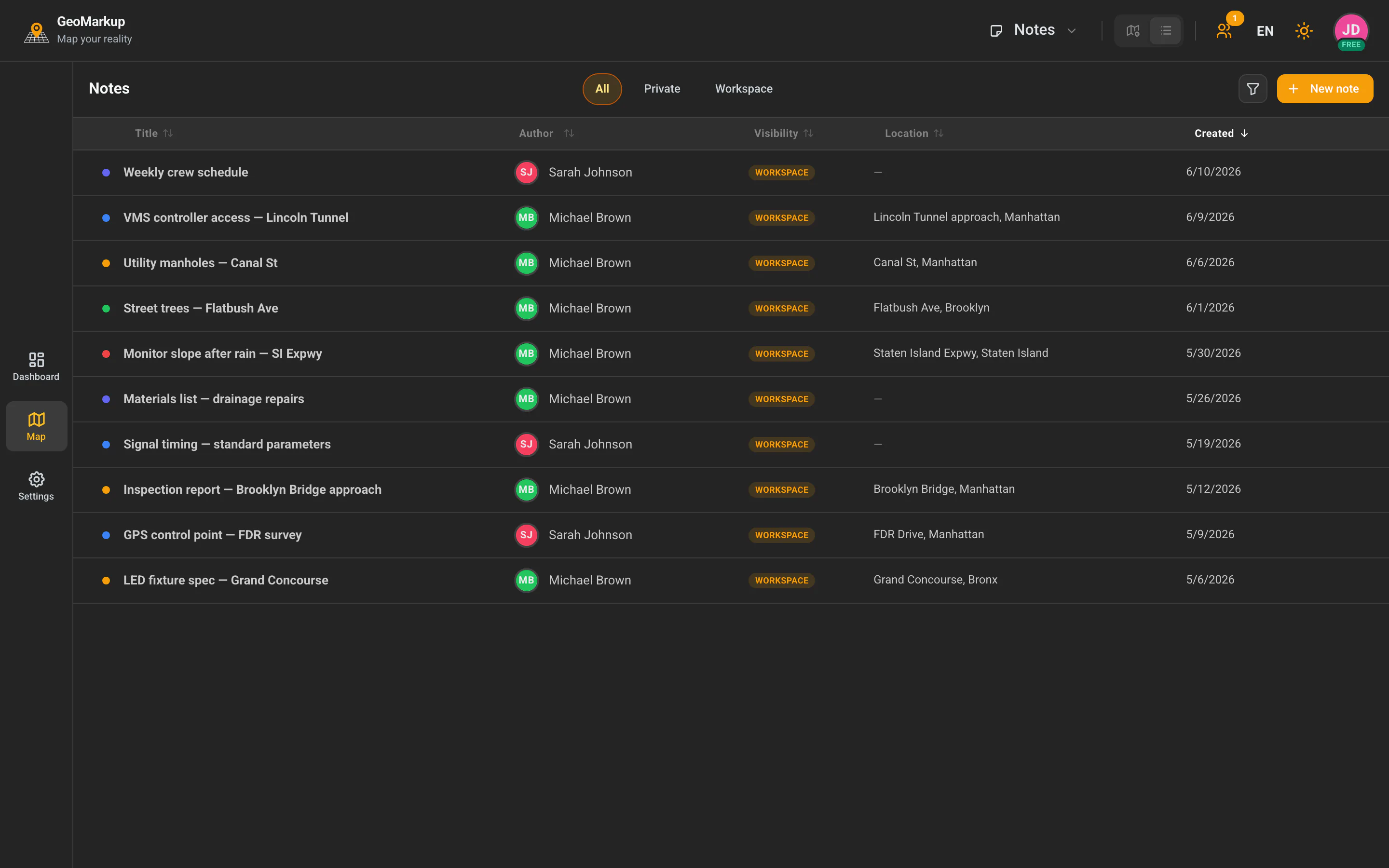
Notes have two views (no Kanban like tasks):
Map view
Notes shown as coloured points on the map. Clicking a point shows a popup with the title, author and date. Next to the map is a panel with the note list (with search and filters).
List view
A table with columns: Title, Author, Visibility, Location, Created (each can be clicked to sort). Above the table are tabs:
- All,
- Private (only your notes),
- Visible to everyone.
You switch views with the same view switcher as for tasks (Map / List).
Filtering and searching notes
The filter panel offers:
| Filter | Description |
|---|---|
| Colour | Choose one or more colours. |
| Visibility | All / Private / Visible to everyone. |
| Author | Choose the note’s author. |
| From / To | Date range. |
| Has location | All / With location / Without location. |
| Location | Choose a specific place. |
Searching by title is available in the “Search notes…” field. Active filters appear as pills; the “Clear filters” button removes them all.
Notes have no categories or tags — colour is what you use for visual grouping.