7. Map setup
Every workspace has its own map configuration: the place the map opens at, how far you can zoom, and which map backgrounds (basemaps) the team can use. You set this up once — the first time you open a brand-new workspace — and the owner can change it later at any time.
The map configuration is per workspace. Each of your workspaces can open on a different city, at a different zoom, with a different default background. Setting up your first workspace is described in the Getting started chapter.
When you set it up (first run)
Right after you create your first workspace, GeoMarkup takes you to the map configurator. You’ll see the heading “Set up your map” with the note “There is just one more step — set up your map’s default settings.”
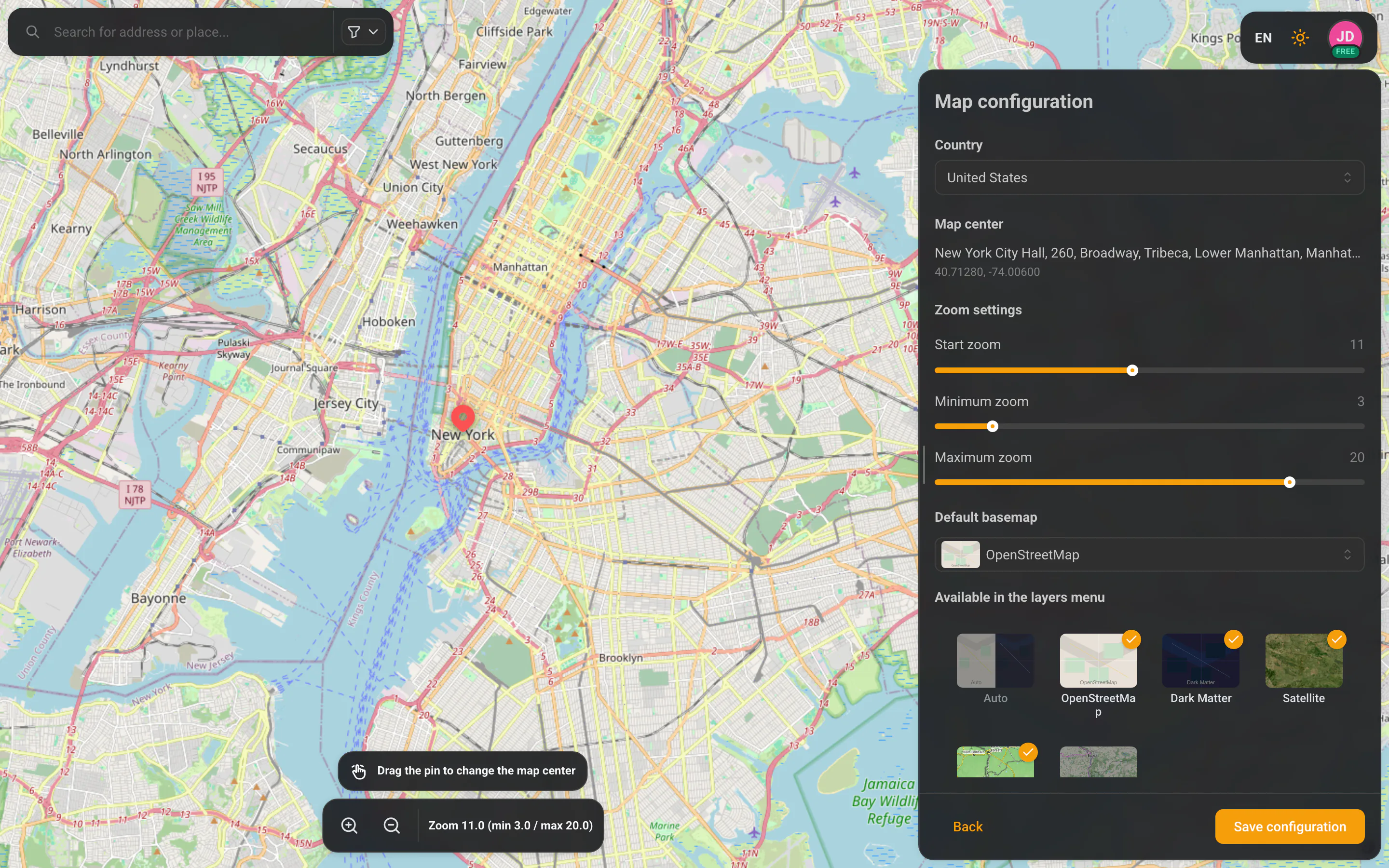
The screen looks like the main map: a live map preview fills the background and a configuration panel floats on the right. As you change settings, the preview updates instantly.
The very first time, this step can’t be skipped — the defaults you pick here apply to everyone on the team. Once saved, you go straight into the workspace.
Country
At the top of the panel, pick the country the workspace mainly works in. Choosing a country re-centres the preview on that country and adjusts which backgrounds are available (some basemaps are country-specific — see below).
Map centre
The centre is the point the map opens at for everyone in the workspace. There are two ways to set it:
- Drag the pin on the preview to the spot you want.
- Use the address search (the magnifier in the top-left corner) to fly to a street, city or place.
The panel shows the recognised place name of the current centre together with its coordinates.
The address search works exactly like the one on the main map — type a few letters and pick a result to jump there instantly.
Zoom settings
Three sliders control zoom:
| Setting | What it does |
|---|---|
| Start zoom | How far in the map is zoomed when it first opens. |
| Minimum zoom | How far out users are allowed to zoom (the widest view). |
| Maximum zoom | How far in users are allowed to zoom (the closest view). |
The values stay consistent with each other — start zoom always sits between the minimum and the maximum.
Default basemap and available backgrounds
This is where you choose the map tile (background) for the workspace. There are two separate controls:
- Default basemap — the background the map uses by default for the whole workspace. Pick it from the dropdown (each option shows a small thumbnail). This is the look everyone sees until they switch it themselves.
- Available in the layers menu — a grid of background thumbnails. Tick the ones team members are allowed to switch to from the map’s “Layers” panel. Selected backgrounds are marked with a check badge. The list always keeps at least one background, and the default is always among the available ones.
You can choose from these backgrounds:
- Auto — automatically light or dark, following the app theme,
- OpenStreetMap — the classic road map,
- Dark Matter — a dark map,
- Satellite — satellite imagery,
- Topographic — a map with terrain relief,
- Cycling (CyclOSM) — a map with cycle routes,
- Orthophoto (Poland) — aerial imagery from Geoportal.
Orthophoto (Poland) is only offered when the workspace country is set to Poland — it’s a Polish national service. Switch the country to Poland to make it available.
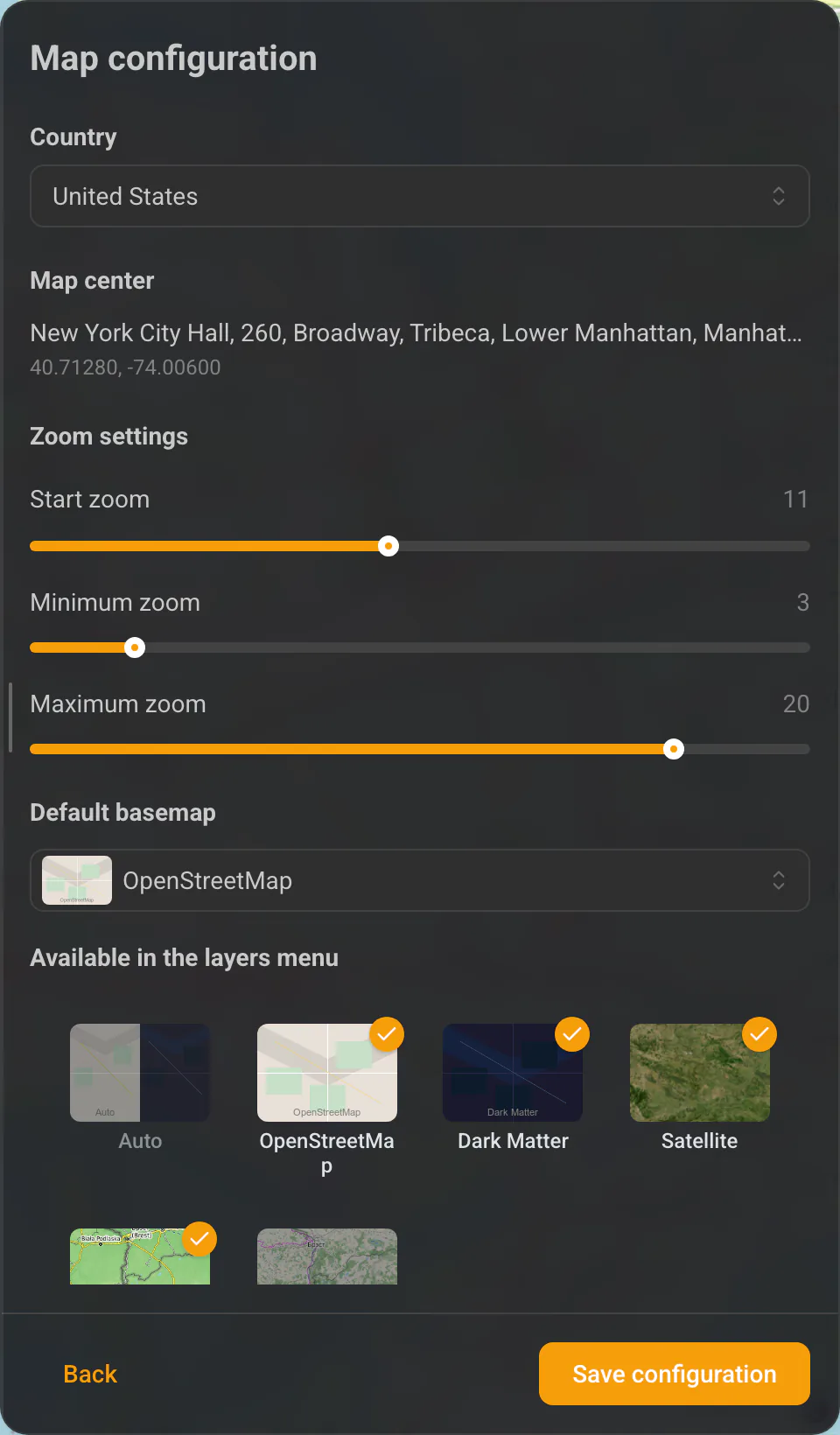
How these basemaps look and behave on the map is described in Map & tools.
Saving and editing later
When you’re happy with the settings, click “Save configuration” (it becomes active once a centre is set). You’ll then enter the workspace.
You can change the configuration at any time:
- Go to Settings → “Workspace”.
- In the “Map configuration” section you’ll see a summary of the current settings.
- Click “Edit map configuration” to reopen the configurator (this time with a “Back” button instead of the first-run wording).
The workspace-settings summary is described in Workspaces.