12. Map & tools
The map is the heart of GeoMarkup. This chapter describes all the tools: map controls, layers, the address search, the drawing toolbox and styling geometries.
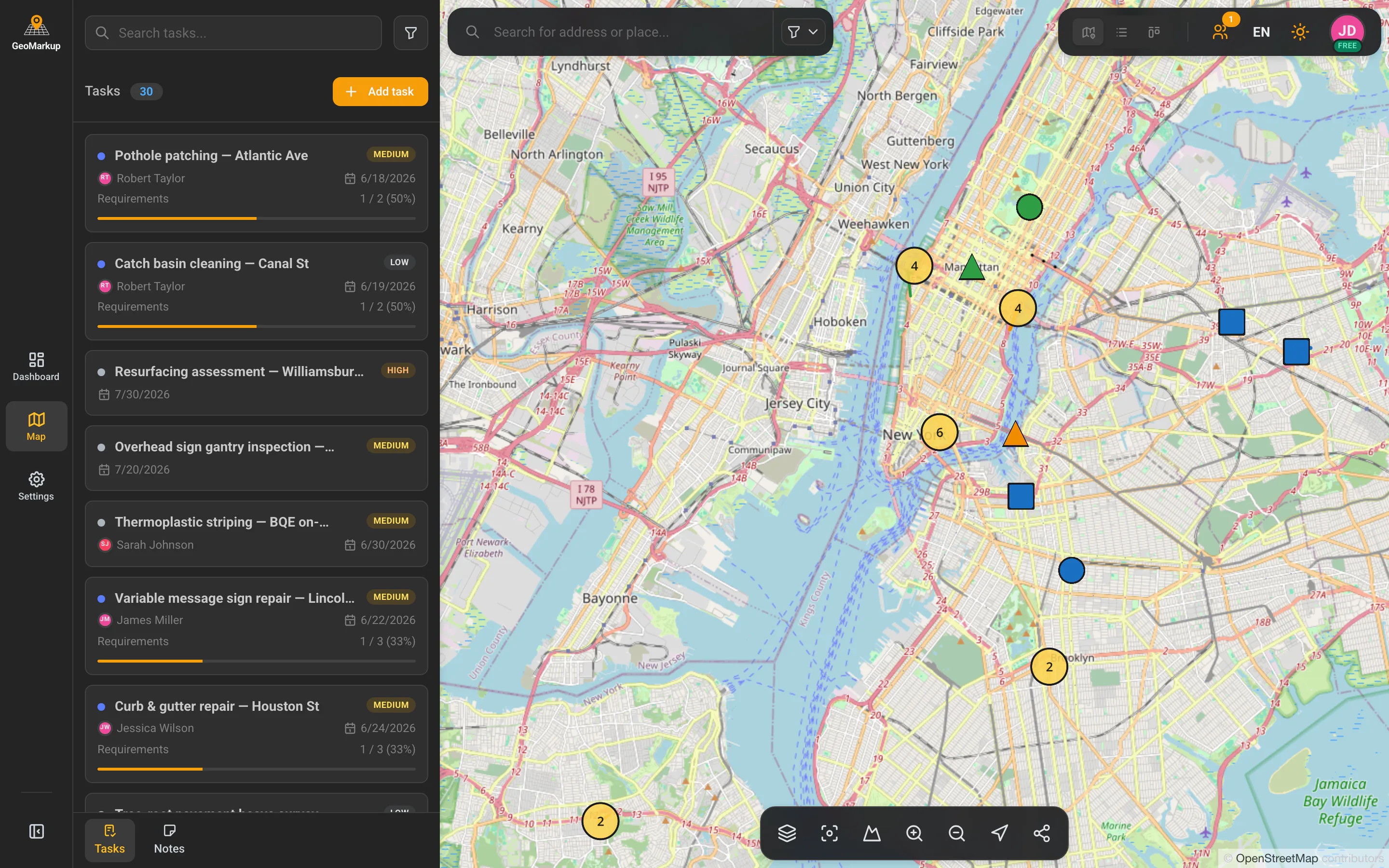
You enter the map by clicking “Map” in the side menu (or by switching the view to “Map”).
Map controls
The map control bar (at the bottom of the screen on a computer) contains:
| Button | What it does |
|---|---|
| Layers | Opens the layers panel (see below). |
| Reset view | Returns to the default view (the centre of Poland). |
| 3D / 2D view | Switches between a flat 2D view and 3D terrain. |
| Zoom in | Magnifies the map. |
| Zoom out | Shrinks the map. |
| Go to my location | Centres the map on your GPS location. |
You can also pan the map by dragging it with the mouse (or finger), and zoom in/out with the mouse wheel or a pinch gesture on a touchscreen.
Layers panel
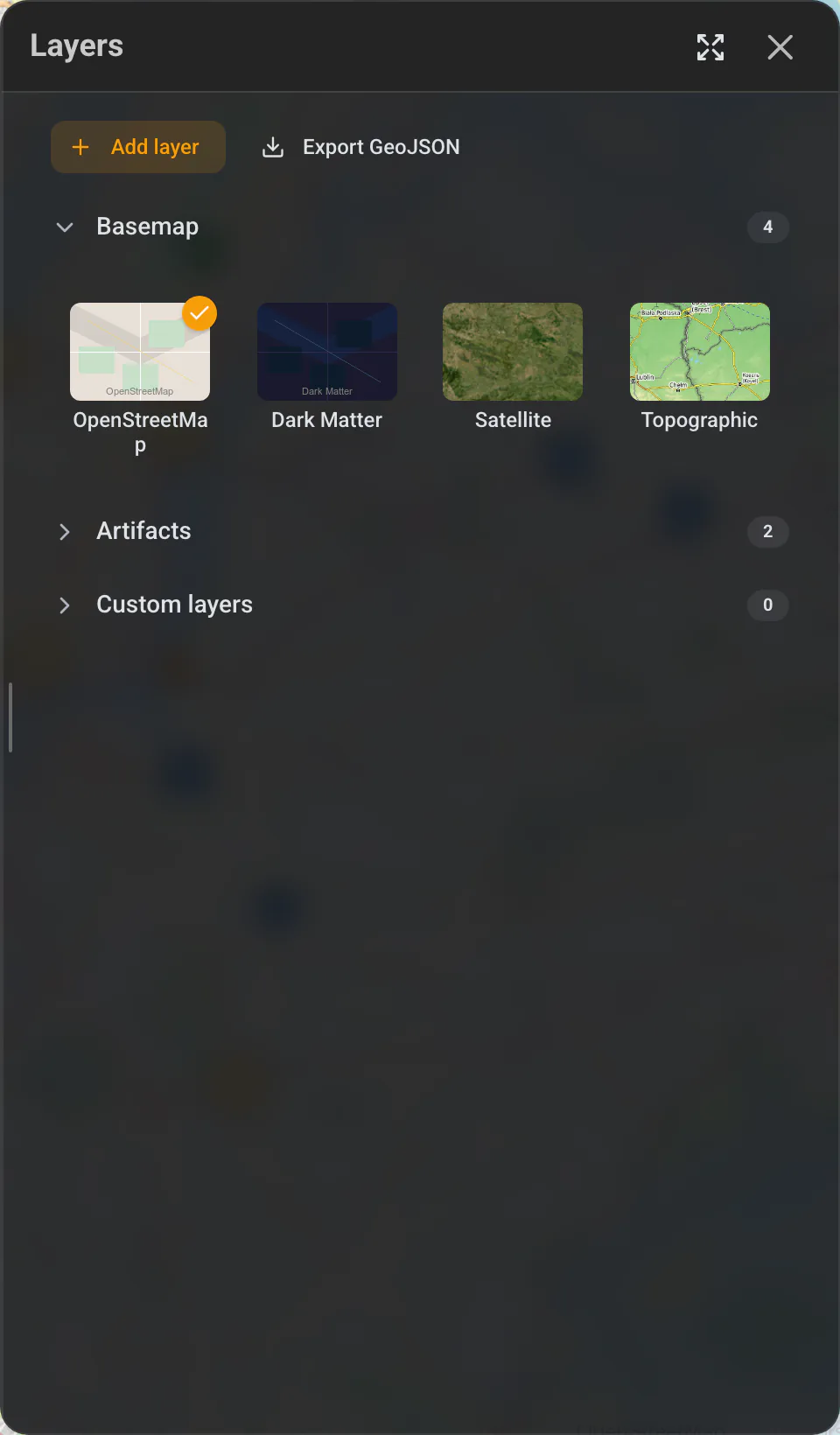
The “Layers” button opens a panel where you turn on and off what’s shown on the map.
Basemap (background)
You choose the map background’s look from:
- Auto — automatically light or dark (depending on the theme),
- OpenStreetMap — the classic road map,
- Dark Matter — a dark map,
- Satellite — satellite imagery,
- Topographic — a map with terrain relief,
- Cycling (CyclOSM) — a map with cycle routes,
- Orthophoto (Poland) — aerial imagery from Geoportal.
Which backgrounds appear here, and which one is selected by default, are set per workspace in Map setup. The owner controls the list and the default for the whole team.
When 3D terrain mode is on, the basemap is temporarily set to the 3D style and basemap selection is locked — the individual backgrounds are greyed out. The layers panel then shows a notice with a “Turn off 3D” button; once you disable 3D mode (with that button or the 3D / 2D view control on the map) you can pick any basemap again.
Artifacts
Checkboxes that show or hide on the map:
- Tasks — all task markers,
- Notes — all note markers.
Standard layers
- Poland border,
- Voivodeship borders,
- National roads (DK) & motorways,
- Voivodeship roads (DW).
Custom layers
Admins can upload custom layers from files (GeoJSON, KML, KMZ, GPX, GeoPackage, Shapefile in a ZIP — up to 50 MB) with the “Add layer” button. Each custom layer can be edited, deleted or downloaded. There’s also an “Export GeoJSON” button to download the map’s data.
Address search
The map has a search (magnifier icon). Once expanded, type an address or place name (e.g. a street, city, road). Results include addresses, buildings, streets, cities, points of interest and natural features. You can narrow the result types and turn on “Prioritize nearby results”. The app also remembers your recent searches.
Map context menu (right mouse button)
A right-click on the map (on a phone: a long press) opens a menu that depends on where you click:
- on empty space: “Add task”, “Add note”,
- on a task marker: “Show details”, “Edit task”, “Delete task”, “Add task”,
- on a drawn geometry: “Edit…” / “Delete…” (marker / line / shape).
Drawing toolbox
When you create or edit a task, the drawing toolbox — a bar of icons — appears on the left of the map (on a phone: at the bottom). Hover over an icon to see its name (a tooltip).
Working modes
| Tool | What it’s for |
|---|---|
| Navigate | Freely browse the map with no risk of drawing by accident. |
| Selection | Select and edit existing drawings. Double-click activates editing; the Delete key removes the selected element. |
Drawing tools
| Tool | What it draws | Settings |
|---|---|---|
| Marker | A single point (a pin). | Shape (circle/square/triangle), colour, icon. |
| Line | A polyline of several points (you click successive points; double-click finishes). | Type (straight/curved), style (solid/dashed/dotted), width, colour. |
| Shape | A figure (rectangle/circle/triangle). | Type, fill (and its colour), style, border width and colour. |
To change a tool’s settings (e.g. the marker colour), click the active tool again — an options panel expands. The last-used settings are remembered and applied to the next drawings of the same type.
Marker icons
You can assign a marker one of the ready-made themed icons, including: Road, Construction, Traffic control, Inspection, Hazard warning, Maintenance, Barrier/blockade, Location marker, Survey/report, Road sign, Issue found, Visual check.
Helper tools
| Tool | What it does |
|---|---|
| Hide / Show other markers | Temporarily hides other markers so you can focus on editing. |
| Geometries list | Shows a list of all the task’s drawings — you can name, edit, zoom to, highlight or delete them (including in bulk). |
| Fly to anchor | Centres the map on the red pin (the task’s main point). |
Undo / Redo
| Tool | What it does | Shortcut |
|---|---|---|
| Undo | Reverts the last change. | Ctrl+Z (Cmd+Z on Mac) |
| Redo | Restores an undone change. | Ctrl+Shift+Z (Cmd+Shift+Z) |
Guide
The “Show guide” button (a ”?” icon) opens a short description of each tool. The guide appears automatically the first time you use the toolbox (on a computer).

On-map hints
The app gives contextual hints, e.g.:
- “The red pin (anchor) marks the task reference point. Drag to move.”
- “Right-click on geometry to edit or delete it.”
- On a phone: “Click the map to add a task at the chosen spot.”
The list side panel on the map
On the left of the map is a panel with the list of tasks or notes. On a computer you can collapse and expand it (and resize it by dragging the edge). On a phone you open it with the list button in the top-left corner of the map. At the bottom of the panel is a switcher between Tasks and Notes.