10. Task views
You can browse tasks in three ways — each suited to something different:
- List — a table, good for a quick overview and sorting,
- Kanban — a board with columns, good for tracking progress,
- Map — tasks on the map, good for getting your bearings in the field.
Switching views
You switch views with the view switcher — in the top-right corner (on the map it’s a small floating bar; outside the map it’s the top bar). Three buttons:
- Map
- List
- Kanban
The currently selected view is highlighted. The chosen view is remembered in the page address, so you can bookmark it in your browser.

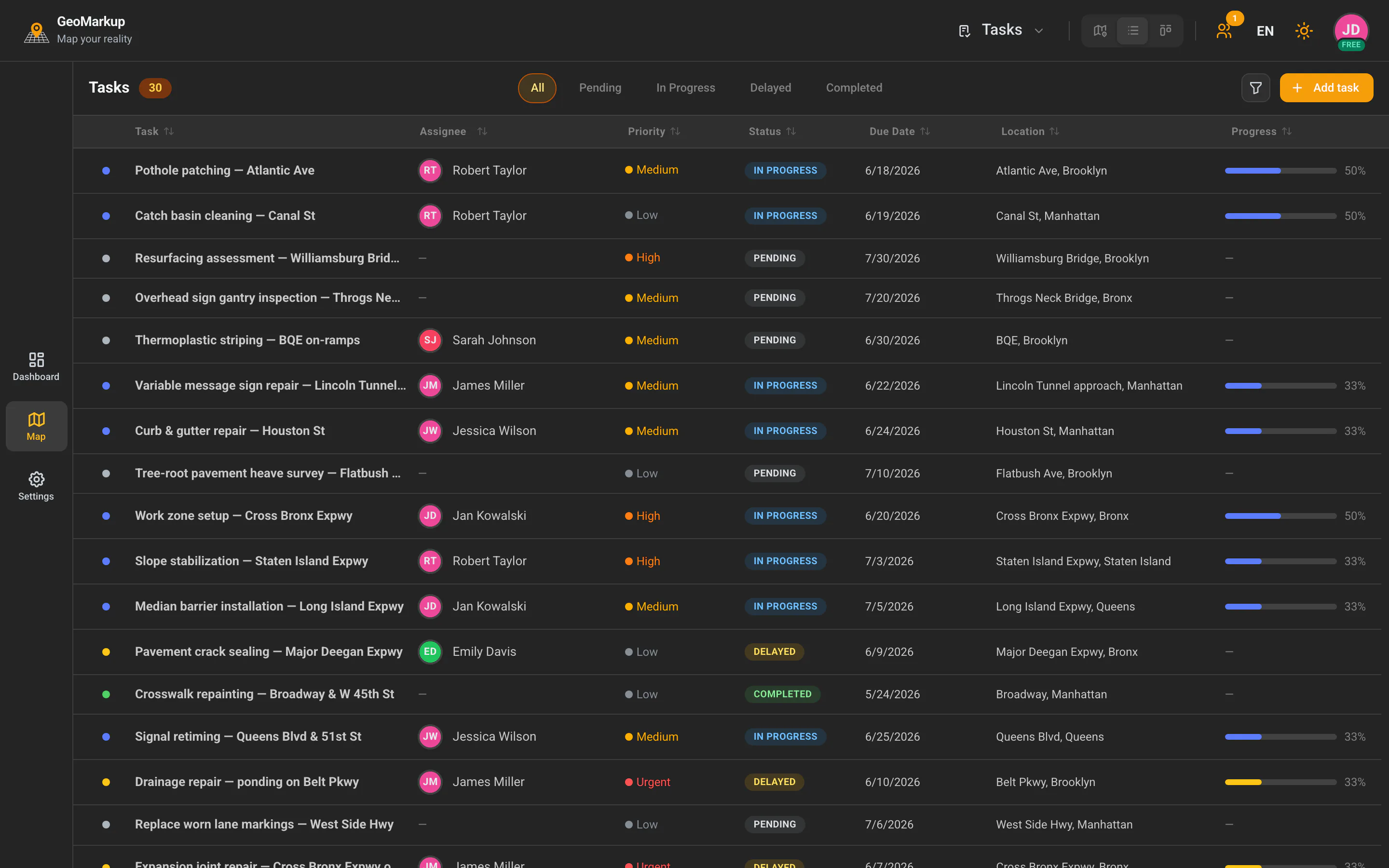
List view
A table of all tasks. At the top, the “Tasks” title and the task count.
Below the header are status filter tabs: All / Pending / In Progress / Delayed / Completed — clicking one shows only tasks of that status.
Table columns (each can be clicked to sort):
| Column | Description |
|---|---|
| ● | A coloured dot marking the status. |
| Task | The title. |
| Assignee | The assignee (avatar + name). |
| Priority | The priority badge. |
| Status | The status badge. |
| Due date | The planned end date. |
| Location | Place/road. |
| Progress | The requirements progress bar. |
Clicking a row opens the task details. The list loads more tasks as you scroll down.
The header also has a filter icon (opens the filter panel) and an “Add task” button.
Kanban view
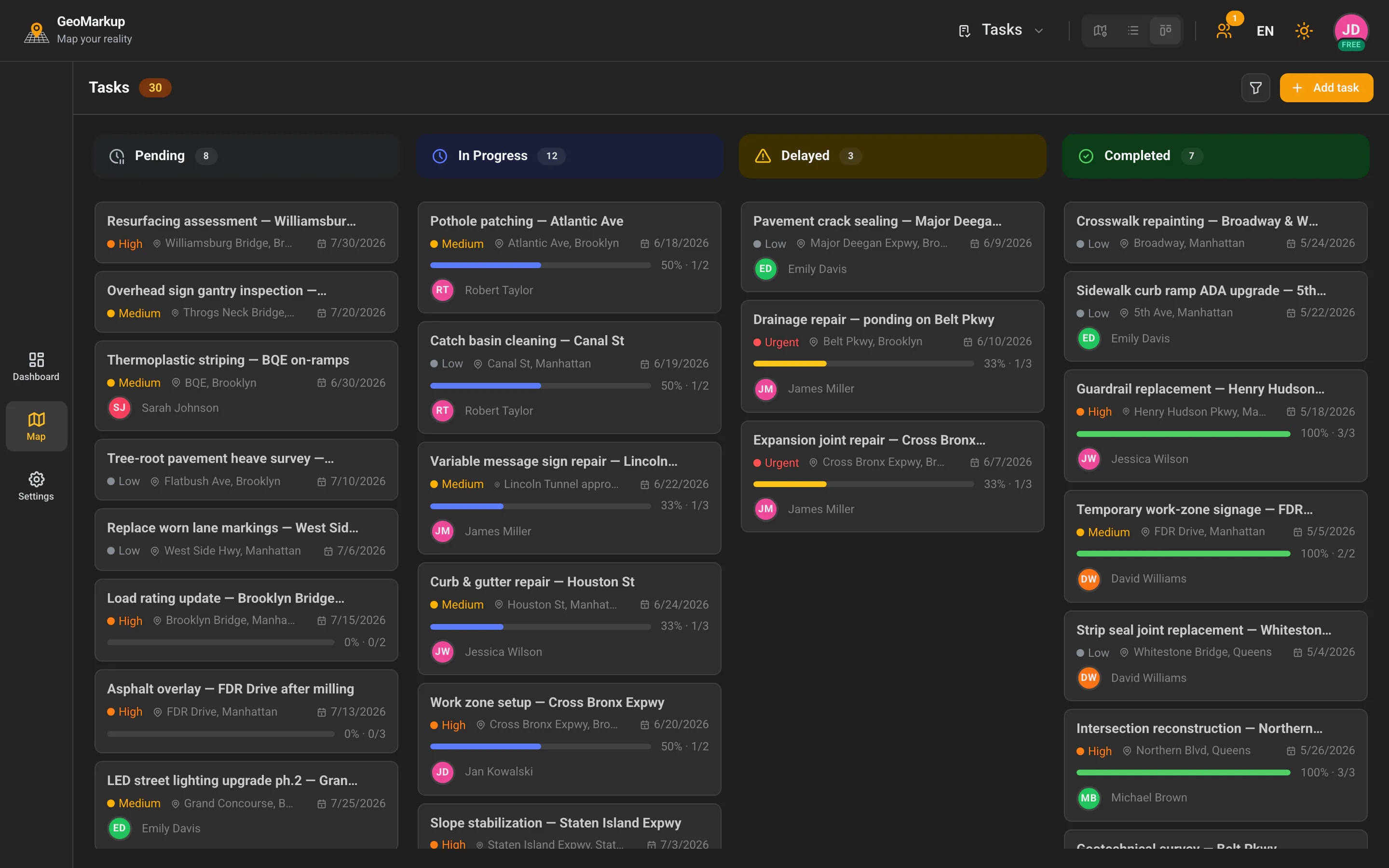
A board split into four columns matching the statuses:
| Column | Status |
|---|---|
| Pending | Pending |
| In Progress | InProgress |
| Delayed | Delayed |
| Completed | Completed |
Each column shows its task count and loads more with the “Load more” button.
Each task is a card containing: title, priority, location (if any), due date (if any), the requirements progress bar and the assignee.
Dragging cards: You can drag a card to another column to change the task’s status. Note — to move a task to “Completed”, its requirements and related tasks must be satisfied.
The header has a filter icon and an “Add task” button.
Map view
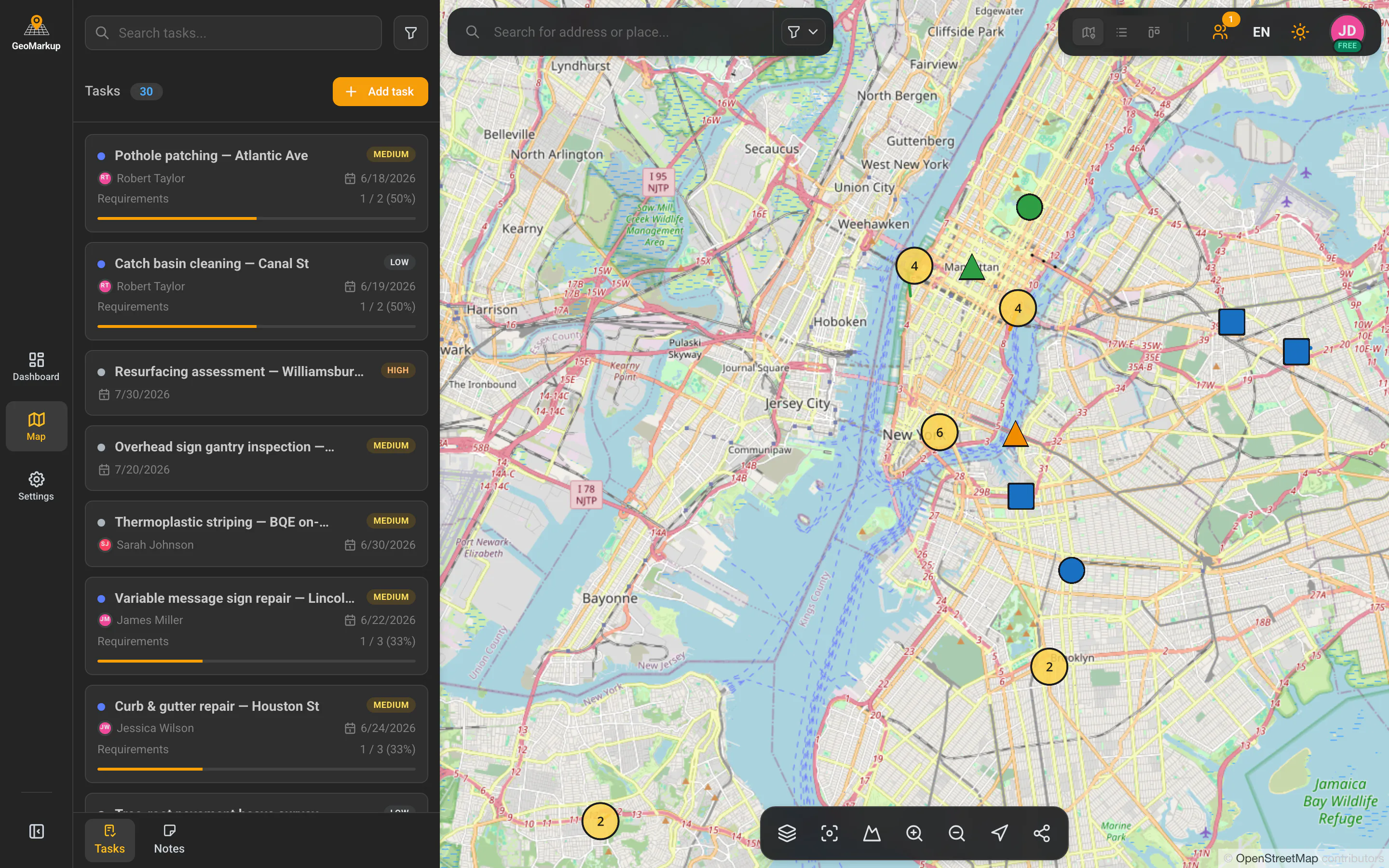
A full-screen map with tasks shown as markers, lines and shapes.
- Clicking a task on the map opens its details.
- A right-click (on a phone: long press) opens a menu of options (e.g. “Add task”, “Show details”).
- Next to the map is a side panel with the task list (“Active tasks” / “Completed tasks”).
All the map tools (layers, search, zoom, drawing) are described in the Map & tools chapter.
Filtering, sorting and searching
Searching
The filter panel has a “Search tasks…” field — it searches by title.
Filtering
The filter icon opens a panel with the available filters:
| Filter | Description |
|---|---|
| Title | Text search. |
| Status | All / Pending / In Progress / Delayed / Completed. |
| Priority | All / Low / Medium / High / Urgent. |
| Assignee | Choose a person from the team. |
| From / To | Date range. |
| Location / Road | Choose a place from the list. |
Active filters appear as “pills” under the header — each can be removed with the × cross. The “Clear all filters” button removes them all at once.
In list view, the tabs above the table (All / Pending / …) are a quick shortcut for filtering by status — without opening the panel.
Sorting
- List view: click a column header to sort (clicking again reverses the order).
- Map view: the filter panel has a “Sort by” option with a direction selector (ascending/descending).
Fields you can sort by: Name, Created date, Modified date, Due date, Priority, Status, Assignee, Location, Progress.