5. Dashboard
The dashboard is the home page of a workspace. It gives you a quick overview: how many tasks you have, their statuses, who is working on what, and what is overdue. You open it by clicking “Dashboard” in the side menu.
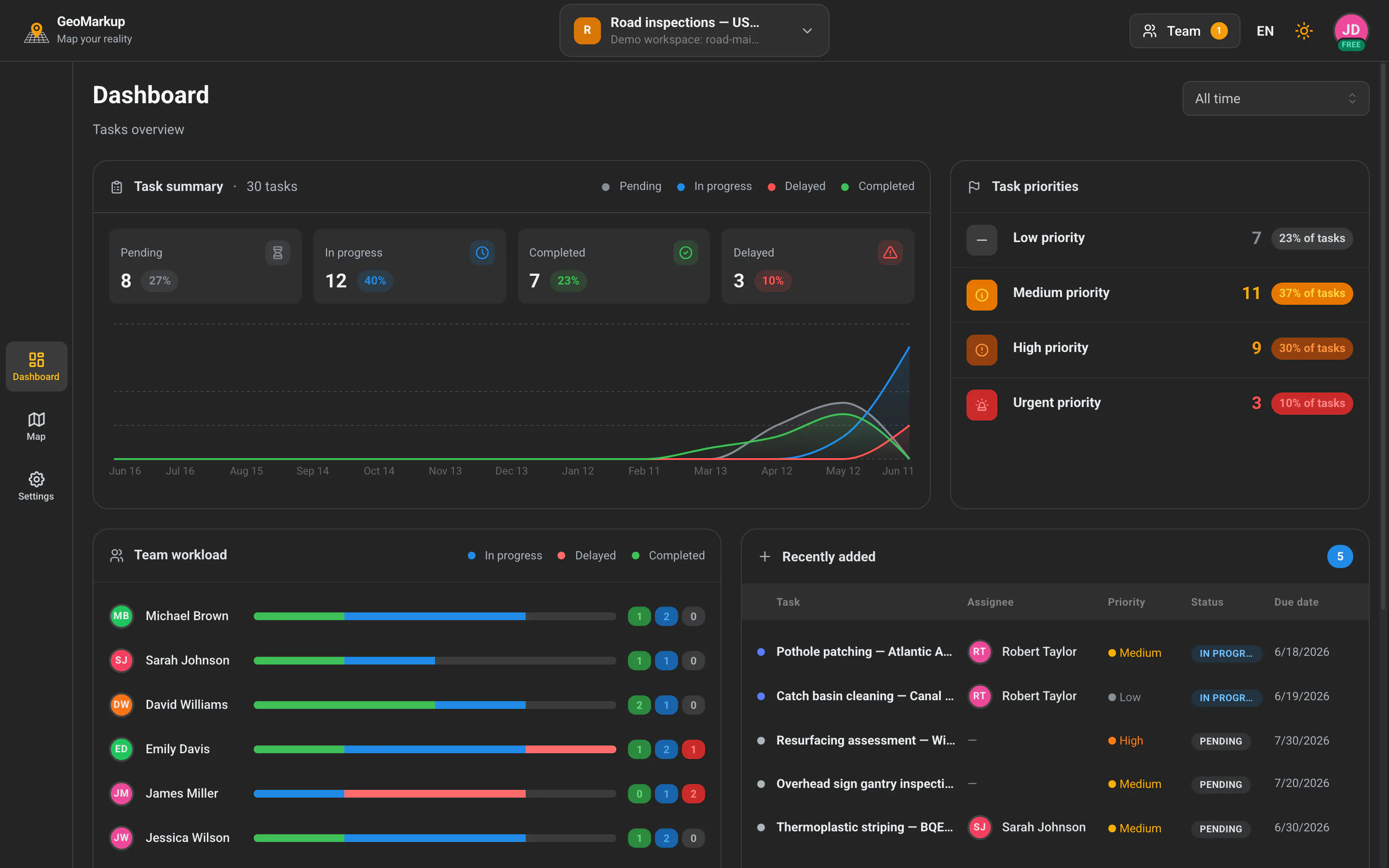
Header and date range
At the top of the dashboard there’s the “Dashboard” title and the “Tasks overview” subtitle.
On the right is the date-range picker, which decides the period the statistics and chart cover:
- Last 7 days
- Last 30 days
- Last 90 days
- All time
Changing the range refreshes the dashboard data immediately.
Card: Task summary
The most important card — it shows the state of all tasks in the workspace. The header shows the total number of tasks.
It has two parts:
Four counters (tiles):
| Tile | What it counts |
|---|---|
| Pending | Tasks not started yet. |
| In progress | Tasks under way. |
| Completed | Finished tasks. |
| Delayed | Overdue tasks that are not finished yet. |
Task progress chart: A chart showing how task counts changed over the chosen period. Four colours match the statuses:
- grey — Pending,
- blue — In progress,
- red — Delayed,
- green — Completed.
Hover over the chart to see the exact values for a given day.
Card: Task priorities
Shows how many tasks have each of the four priority levels, and what percentage of all tasks that is:
| Priority | Colour |
|---|---|
| Urgent | red |
| High | orange |
| Medium | yellow |
| Low | grey |
Card: Team workload
Shows how work is distributed across team members. For each person you’ll see:
- their avatar and name,
- a coloured bar splitting their tasks into In progress (blue), Delayed (red) and Completed (green),
- the numbers for each of those states.
This makes it easy to see who is the busiest. If the team is large, the list is paginated.
Card: Recently added
A table of the newest tasks. Columns:
- Task — the title,
- Assignee — the responsible person,
- Priority,
- Status,
- Due date.
On the left of each row is a coloured dot marking the status.
Card: Delayed tasks
A list of overdue tasks (up to the 5 most important). Columns:
- Task, Assignee, Priority, Due date, Location, Progress.
If there are more than 5 delayed tasks, a “Show all (count)” link appears at the bottom. Clicking it takes you to the task list with the Status = Delayed filter applied.
Empty cards? If a section has no data yet (e.g. “No delayed tasks”), that’s good news — nothing needs your attention.