3. Your account
This chapter explains how to manage your account: change your personal data, set a profile picture, change your email and password, sign out and — if needed — delete your account.
Where to find account settings
You open account settings in two ways:
- by clicking the gear icon (“Settings”) in the menu on the left, or
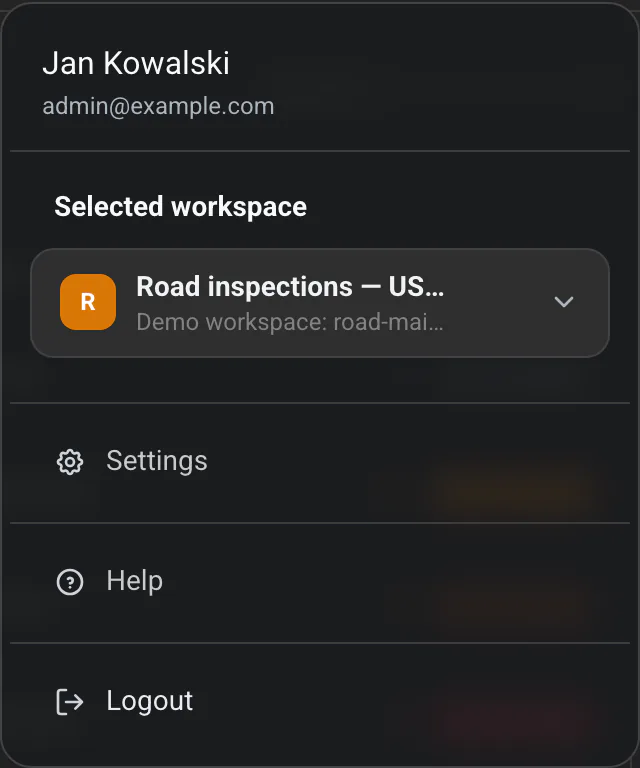
- by clicking your avatar in the top-right corner and choosing “Settings”.
The settings page has three tabs along the side:
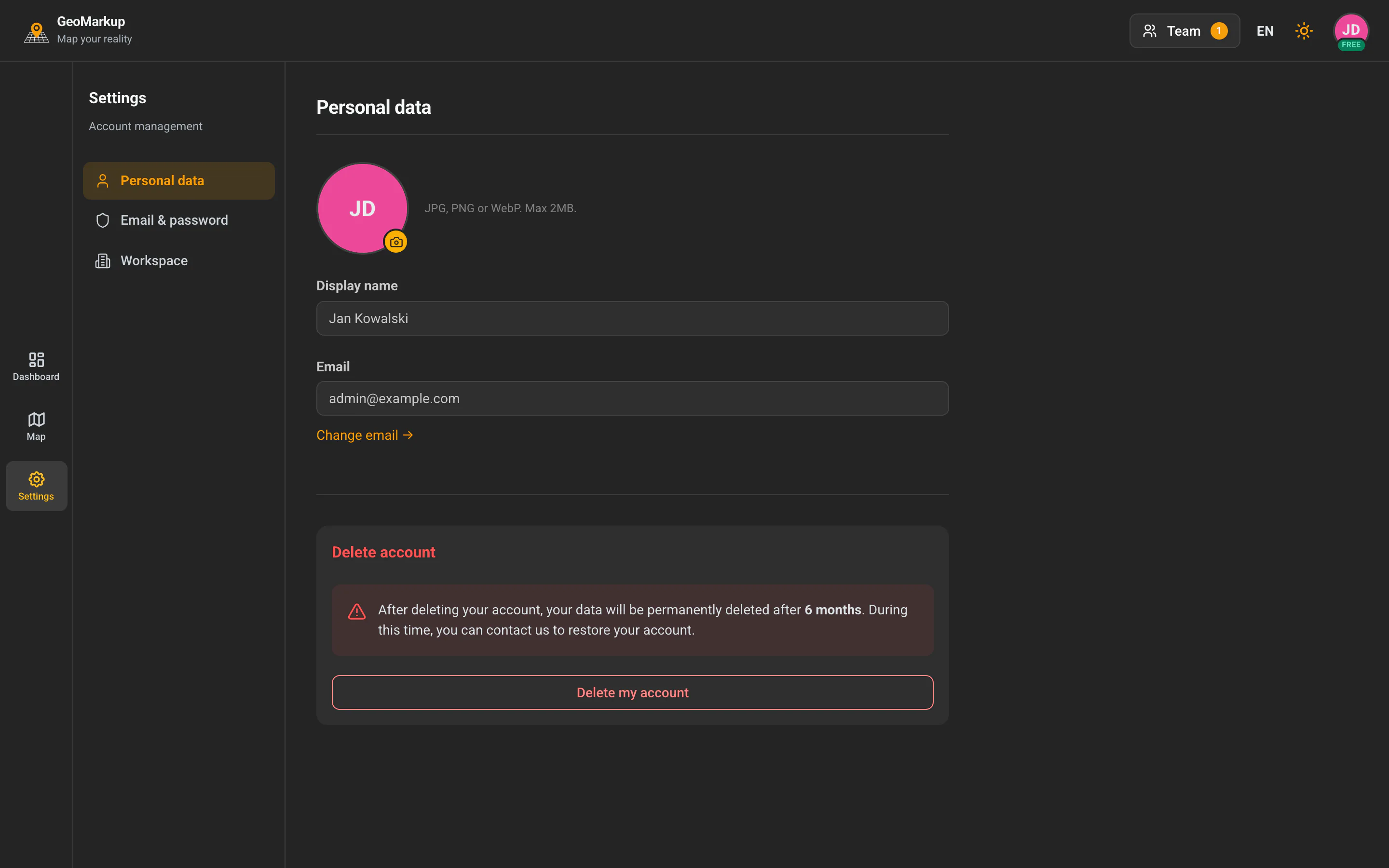
- Personal data — your photo, display name, email, account deletion,
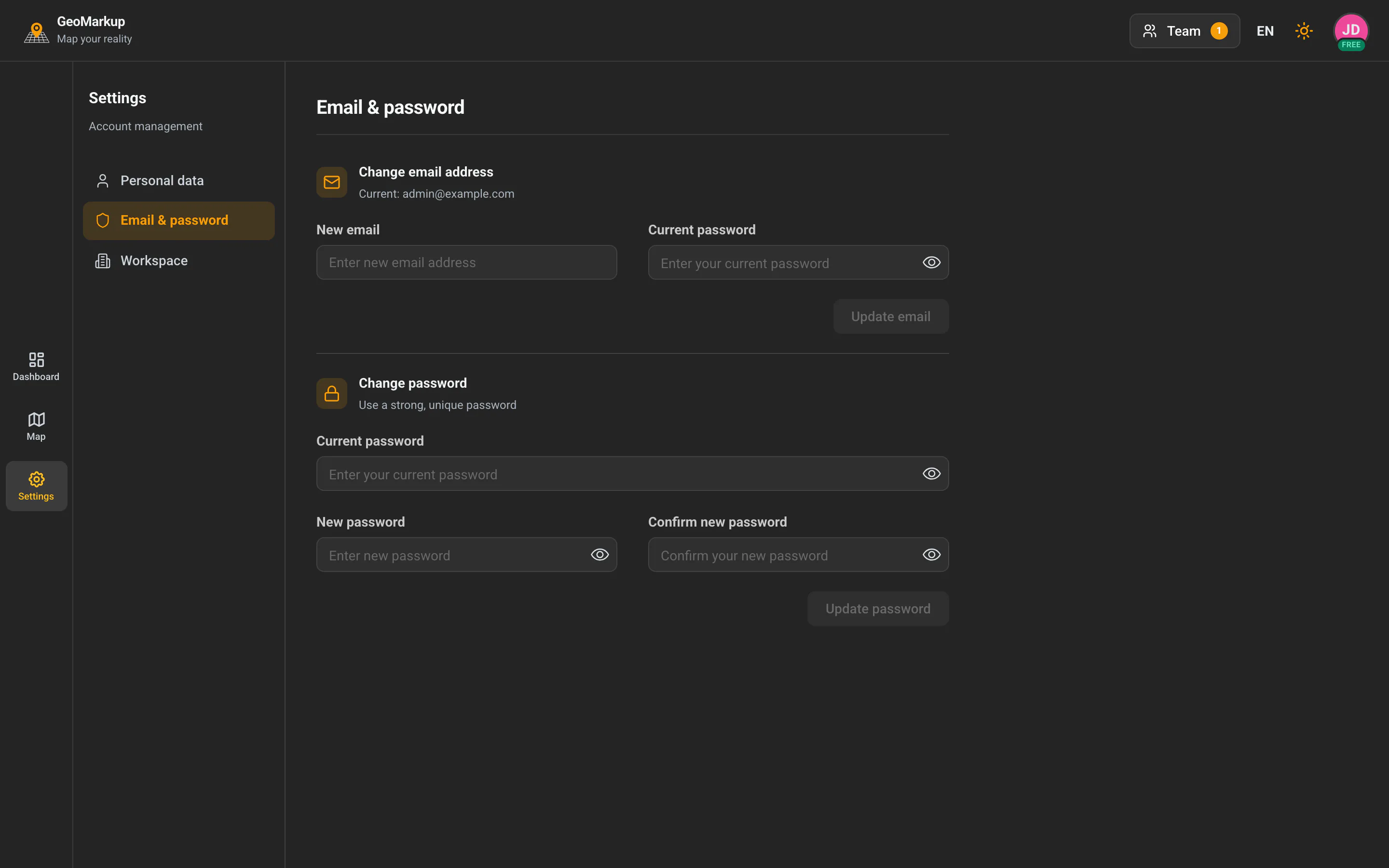
- Email & password — change your email and change your password,
- Workspace — workspace settings (available only to the owner; described in the Workspaces chapter).
Personal data
Profile picture (avatar)
- In the “Personal data” tab, click the avatar circle.
- Choose an image file. Supported formats are JPG, PNG or WebP, with a maximum size of 2 MB.
- The picture is saved and the app shows “Avatar updated successfully”.
To remove the picture, click the “Remove” button next to the avatar.
Display name
This is the name other team members see (e.g. on tasks and comments).
- In the “Display name” field, type a new name.
- You don’t have to click anything — the change saves automatically a moment after you stop typing. Next to the field you’ll see “Saving…” and then “Saved”.
Your current email is shown here, but it can’t be changed in this place. To change it, click the “Change email →” link, which takes you to the “Email & password” tab (see below).
Changing your email
- Go to the “Email & password” tab.
- In the “Change email address” section, enter:
- New email — the new address,
- Current password — your current password (to confirm your identity).
- Click “Update email”.
After a successful change you’ll see “Email updated successfully”.
If you see “This email is already in use”, someone else is using that address. If you see “Current password is incorrect”, check that you typed your current password correctly.
Changing your password
- Go to the “Email & password” tab.
- In the “Change password” section, fill in three fields:
- Current password — your current password,
- New password — the new password (at least 8 characters),
- Confirm new password — repeat the new password.
- Click “Update password”.
Below the “New password” field you’ll see a password strength indicator that tells you how strong your password is: Weak, Fair, Good or Strong. The longer the password and the more varied the characters (upper- and lower-case letters, digits, special characters), the better.
A good password is at least 12 characters long and contains letters, digits and special characters.
After a successful change you’ll see “Password updated successfully”.
Possible messages:
- “Password must be at least 8 characters” — the new password is too short,
- “Passwords do not match” — the “New password” and “Confirm new password” fields differ,
- “Current password is incorrect” — the current password was entered incorrectly.
Recovering a forgotten password
If you can’t remember your password and can’t sign in, use the password-recovery option available on the sign-in screen (a “Forgot your password?” link). Follow the instructions — an email allowing you to set a new password will be sent to your address.
Password recovery happens on the secured sign-in screen, not inside the app. If you’re already signed in and just want to change your password, use the Changing your password section above.
Signing out
- Click your avatar in the top-right corner.
- From the menu choose “Logout”.
You’ll be securely signed out. To get back to work, sign in again.
Deleting your account
If you want to stop using GeoMarkup entirely, you can delete your account.
- Go to the “Personal data” tab and scroll down to the “Delete account” section.
- Click “Delete my account”.
- Two buttons appear — click “I confirm — delete” to confirm (or “Cancel” to back out).
Important: After deleting your account, your data will be permanently deleted after 6 months. During this time you can contact support to restore your account.
After sending the request you’ll see “Account deletion requested”.